Obby Builder Controls
PC, mobile, tablet, and console — build and playtest.
Obby Builder uses standard Roblox movement plus a build layer: hammer, part picker, and gizmos. You can play and build on PC, mobile, tablet, and console on the same 10-player servers. Inputs change. The plot does not. If a jump is fair on a keyboard and impossible on a thumbstick, the jump is not fair.
This page is the device map. Place your first spawn in Getting Started, then return here when a gizmo or a jump input fights you. Part choice and lighting stay on How to Build.
PC movement and the hammer
On PC, move with WASD, jump with Space, and look with the mouse. Shift-lock (usually Left Shift, matching your Roblox setting) keeps the camera behind the avatar so side jumps are readable. Turn shift-lock on for playtests. Turn it off if you need a free camera while lining up a long platform.
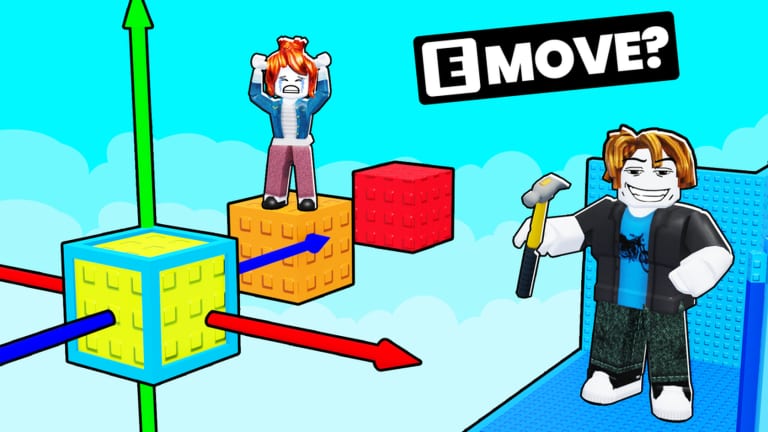
Official first-person shots show the hammer in view while you build. Treat build mode as a studio: select a part, then use the Move gizmo instead of walking into it. The Move prompt appears in official art as on-screen guidance next to RGB axis arrows. Drag red, green, or blue, one axis at a time. If you rotate the camera until two arrows overlap, you will slide the part on the wrong axis.
Keyboard builders should zoom out before placing a killbrick beside a checkpoint. First person hides the far edge. A quick third-person check catches floating corners that mobile players will hit.
Click to select, then Move, rotate, or scale with the on-plot tools rather than custom Studio shortcuts. This is not Roblox Studio. There is no Command bar. If a tool does nothing, you are in play mode; switch back to build.
Jump timing on PC is the strictest. If you cannot clear a gap on default jump without a coil, do not ship that gap. Fusion Coil, Gravity Coil, and Speed Coil change the test; they are not the default control scheme.
Mobile, tablet, and tap-to-place
On phones and tablets, move with the left thumbstick and jump with the on-screen button. Camera drag uses the right side of the screen. Thumb jump is slower to tap than Space. Build extra landing depth for mobile.
Tap-to-place is the mobile build path. Select a part in the picker, tap the world, then use the gizmo handles. Fat-finger selects happen. Zoom in before you Move a checkpoint that sits next to a killbrick. If you scale from a corner by accident, undo or delete rather than leaving a wedge in the jump arc.
Tablets have more screen for gizmos and still use thumbs. Sit the HUD so the jump button does not cover a Move arrow. When the gizmo and the jump pad overlap, you will either place a part or fall; never both on purpose.
Playtest on the same phone you will share the slot code from. A layout tuned on a 27-inch monitor lies. If you only own a PC, ask a friend on mobile to walk spawn to finish once. That is a better test than another keyboard run.
Console on a 10-player server
Console uses a thumbstick for move, a face button for jump, and the right stick for camera. Precision jumps that need pixel edges on PC become coin-flips on a stick. Widen pads. Soften corners. Avoid one-stud tightropes unless you are building a specialist course and you say so on a sign.
Ten-player servers mix PC, mobile, tablet, and console in one room. You cannot split the plot by device. If four console players load your slot, they all use stick jump. Build for the least precise input in the server, not for your mouse.
Console UI is heavier. Opening Slots, copying a code, and toggling Unlisted takes more focus. Do not start a Move while a friend on console is still in a menu; you will overwrite a part they thought they selected. Co-op etiquette lives on Co-op Building.
Some console players will never open build tools and only run Trending. That is fine. Your playtest still needs a stick jump. If you cannot borrow a controller, widen the first five landings and add a checkpoint earlier than you want.
Play mode versus build mode
Build mode is for the hammer, gizmos, and placement. Play mode is for the course as a runner sees it. Switch to play before you call a layout done. Start at spawn. Do not pause mid-jump to Move a pad unless you are still drafting.
In play mode, movement is only WASD or thumbstick, jump, and camera. Coils, if you own them, are extra movement. Unequip coils when you judge fairness. Equip them when you are traversing a long plot to fix a distant sign.
Save before you toggle modes after a large Move. If play mode proves a jump is impossible, go back to build and Move the landing, then save again. Copy the slot code after a good playtest so a bad later Move does not become the only save.
If a control fight is actually a layout fight, stop tweaking sensitivity and fix the part. Controls cannot save a one-way mover into a killbrick pit. Layout can.
Frequently Asked Questions
Quick answers to the most common Obby Builder questions.
What movement keys does Obby Builder use on PC?
WASD to move, Space to jump, mouse to look. Shift-lock helps side jumps during playtests. Build tools still use the on-plot Move gizmo, not Studio shortcuts.
How do I place parts on mobile?
Select a part, tap-to-place, then drag the RGB Move handles. Zoom in so the jump button does not overlap the gizmo.
Why do console jumps feel harder than PC jumps?
Thumbsticks are less precise than a keyboard and mouse. Widen landings and add earlier checkpoints if console players share your 10-player server.
When should I leave build mode?
Before you call the course fair. Play mode from spawn, without coils, is the real test. Then save and copy a slot code.
Where do I go after I learn the inputs?
Return to Getting Started for the first plot, or open How to Build for parts and movers. Editing with a friend is Co-op Building.